
The Old Way
- Cropping until the subject has no room to breathe
- Reshooting for 16:9 or 9:16 after the fact
- Stretching pixels until the edges smear
- Content-aware fill that invents junk in the corners
Extend the canvas, change the ratio, and recompose the shot without a reshoot.
Upload Your Photo *
Upload a photo and pick the ratio you want to expand into.
Drop your photo here or click to browse
JPG, PNG, WebP up to 30MB
Ratio
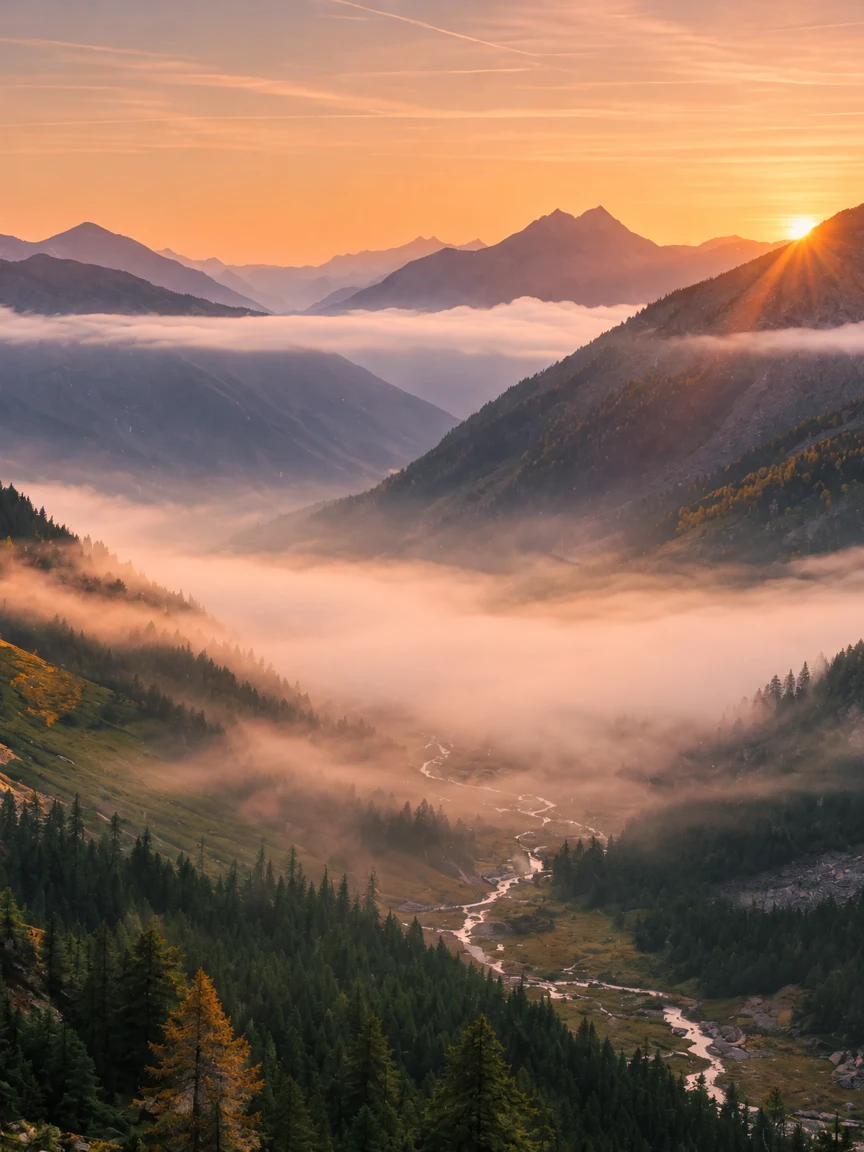
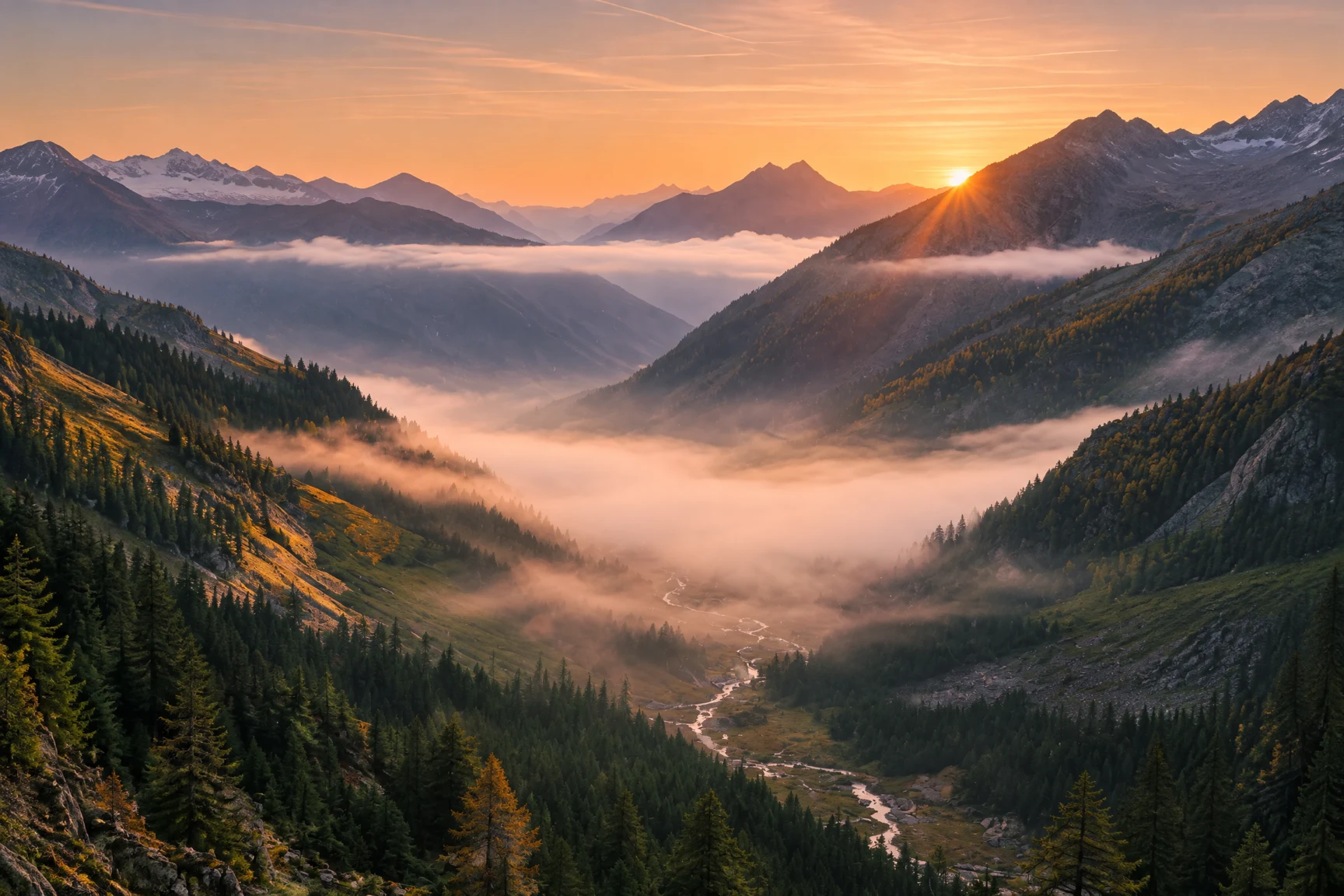 BeforeAfter
We built this expander because a tight crop should not kill the shot.
The AI Image Expander outpaints new borders so a tight crop can become 16:9, 9:16, or square.
A vertical phone still that needs 16:9 for a site hero. The AI Image Expander invents only the new sides.
Perfect for
A landscape photo that must stand up as 9:16. The AI Image Expander grows the top and bottom.
Perfect for
Feed a 1:1 from a 4:3 without chopping the subject. The AI Image Expander adds canvas, not a center crop.
Perfect for
A poster or flyer that needs bleed. The AI Image Expander continues the scene into the new border.
Perfect for
Heads too close to the edge. The AI Image Expander gives the group room without a reshoot.
Perfect for
A pack shot cropped to the label. Expand the table so a listing can show more of the scene.
Perfect for
Designers, sellers, and anyone whose best frame is the wrong ratio for the next placement.
The subject is right. The canvas is not. The AI Image Expander grows the frame to the ratio you pick.
One photo, several placements. The AI Image Expander is cheaper than another set.
A vacation still that is too tight for a print or a story.
An AI Image Expander should grow the canvas and leave the original photo intact. This page outpaints with GPT Image 2.5. You pick a ratio. The subject stays where it was. New pixels appear only in the added borders, matched to the lighting and texture that are already in the file.
The AI Image Expander is outpainting, not a crop tool and not an upscaler. A crop throws pixels away. An upscaler adds resolution inside the same framing. This tool invents the missing edges so a 4:3 can become 16:9 or a landscape can stand as 9:16.
The system prompt tells the model to keep every original pixel of the subject and scene, and to invent content only in the new borders. Do not expect a new main character in that border. The AI Image Expander is meant to continue the photograph, not start a second story.
Upload a JPG, PNG, or WebP up to 30MB. Pick 1:1, 16:9, 9:16, 4:3, or 3:4. You can leave the prompt empty. Click expand. The AI Image Expander costs 6 credits. Compare the result: the original subject should sit in the same place, with new room around it.
If you add a prompt, it is a note for the new borders only — “continue the brick wall” — not a request to restyle the person. A restyle request fights the expander and can replace the subject. Keep the note short.
Use it when the photo is good and the ratio is wrong: a hero that needs widescreen, a story that needs 9:16, a poster that needs bleed, a group shot with no air. The AI Image Expander is also useful before a pose change if the body is clipped by the frame.
It is the wrong tool for a soft file that just needs more pixels — that is the Image Upscaler. It is the wrong tool if you want the subject cut out — that is the Background Remover. Expanding a tiny, muddy source will grow the mud.
6 credits a run, 30MB, JPG / PNG / WebP. No watermark. The AI Image Expander runs in the browser. We do not offer a free-for-life 8K export or a no-signup claim. You view the page freely; credits are for the run.
Hard cases: text at the edge, logos cut in half, and very busy crowds. The model may complete a letter poorly. If type sits on the border, crop it fully inside the original before you expand, or expect to fix the type later.
Pick the ratio you actually need. Jumping from a tight portrait to 21:9 in one leap asks the model to invent a lot of wall. A step to 16:9 is usually cleaner. Give the subject a little room already — a forehead clipped to the pixel is harder to continue.
After you download, look at the seams where old pixels meet new ones. If a horizon jumps, rerun with a short border note. If the subject shifted, the prompt was probably asking for a restyle. Clear it and run the AI Image Expander again.
Upload a photo, pick a ratio, then expand.
Step 1
Any clear shot works. Tight crops are what the AI Image Expander is for.
Step 2
Choose the new canvas, then click Expand Image.
Step 3
Use it as a banner, a story, or a new crop. Run again if you want another ratio.
How the AI Image Expander outpaints a photo, which ratios it uses, and how credits work.
An AI Image Expander outpaints a photo: it grows the canvas and fills the new area so the scene continues. This page is that tool.
You can start in the browser with trial credits. Add a plan for more AI Image Expander runs.
No. The AI Image Expander runs in the browser. Nothing to install.
Not required. Pick a ratio and expand. Add a line only if you want the new edges to follow a specific scene.
No. Cropping throws pixels away. The AI Image Expander adds them.
It should keep the original content and only invent the new borders. A very small source image is harder.
JPG, PNG, or WebP, up to 30MB.
Each expand costs 6 credits (GPT Image 2.5 at 1K under the hood). Subscription credits are used first.
Yes. The AI Image Expander is generating those pixels. Use a source with a clear scene so the continuation has something to follow.
Yes, for a banner or a layout. You still own the original file.
Batch outpainting and keep every AI Image Expander result in one workspace.